Tesla has released the highly anticipated FSD Beta v11.3.1 with Tesla's single-stack highway and city driving. Along with this update comes a new way to report Autopilot feedback to Tesla.
Tesla's new “voice drive-notes,” allows drivers to record an audio message describing the reason for Autopilot's disengagement.
No More Snapshot Button
Before FSD Beta was released to everyone in the U.S. and Canada, Tesla had a snapshot button that allowed drivers to 'flag' certain situations where Autopilot wasn't up to snuff. However, that button is now gone for everyone except very early beta testers.
With this latest beta, those early testers have both, the snapshot button and Tesla's new voice notes. However, we believe that Tesla will transition completely to their voice notes eventually as it provides a hands-free solution and offers the driver the ability to add more detail.
With the new voice notes, Tesla will likely still capture the same information they did with the snapshot button, including the vehicle’s camera feeds and telemetry data.
How Voice Notes Functions
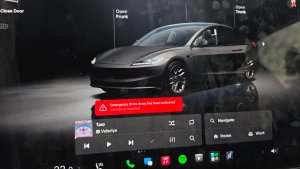
After an Autopilot disengagement, the vehicle will display a small card asking the driver what happened and prompt the driver to share a short voice memo. The card will display:
Autopilot Disengaged. What Happened?
Press voice button to send Tesla an anonymous message describing your experience.
You can then push the right scroll wheel (the same one used to activate voice commands) and provide feedback about the disengagement without removing your hands from the steering wheel.
Recording Limits
Tesla appears to be limiting voice notes to 10 seconds. Once you press the voice button, the screen will display:
Recording...
10 seconds remaining until automatic upload. Press to end recording.
You can let the feature record for all 10 seconds, at which point it'll automatically stop and upload the audio clip to Tesla, or you can stop it early by pressing the scroll wheel again.
You'll also be able to cancel the voice dictation by pressing the 'Cancel' button on the screen.
Once the voice note is sent successfully, Tesla will display a confirmation on the screen.
Recording sent. Thank you. Your feedback will help us improve Autopilot.
Drive Notes in Action
Dan Burkland shows us how FSD Beta's new voice notes feature works.
Misuse of Voice Notes
There's no doubt that this system will be misused by a small percentage of drivers by providing some... interesting recordings. It's not clear how Tesla plans to address this issue, but Tesla could potentially block certain vehicles from sending in voice notes if the system is misused.
Anonymous Recordings
Tesla says that these voice notes will be anonymous, so they likely won't be tied to a specific vehicle or driver profile. However, it's not clear whether Tesla will simply transcribe your audio to text and store that, or if they will retain the audio clip, which could result in it being a little less anonymous.
Transcribing Audio Drive Notes
Tesla’s engineers certainly won’t be listening to every single voice memo sent in, so we’re assuming that Tesla will automatically transcribe these voice memos so that engineers can quickly search through and address various types of reports. However, the question remains if the transcription isn't clear, will the audio clip be available for playback?
Tesla, unfortunately, failed to point out the new voice notes feature in the latest FSD Beta release notes, but this is an exciting feature that will hopefully let many owners provide more detailed feedback on why they disengaged Autopilot.
This feature has been available to Tesla employees and early testers with the public build of FSD Beta 11.3.1 and will hopefully be available to everyone with access to FSD Beta soon.
Follow Us on Google
Add Not a Tesla App as a preferred source on Google to see more of our stories in Top Stories.
Add to Preferred Sources