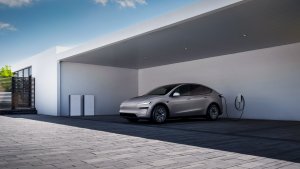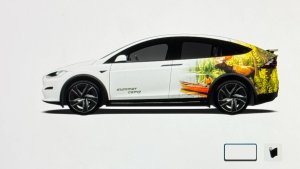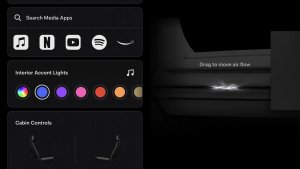
Changing your Tesla’s color – whether through PPF/Vinyl or Paint, is a definite possibility. But how do you show those colors throughout the car’s software? Easy! Tesla’s Colorizer feature offers the ability to adjust the vehicle’s color in software.
You can even change what kind of wheels appear in the visualizations – a quick and easy way to match whatever you have on the car – as long as it’s a first-party wheel.
Where to Find the Colorizer
There are two ways to access Tesla’s Colorizer feature. You can go to the ToyBox app and choose Colorizer, or you can go to Controls > Software and tap on the colored square underneath your vehicle. Keep in mind this feature can only be accessed while the vehicle is parked.
Once enabled, you’ll be presented with the vehicle color wheel and menu – which offers a set of options to cater to your preferences. We’ll tackle some of those options a bit further down.
Where the Colorizer Feature Applies

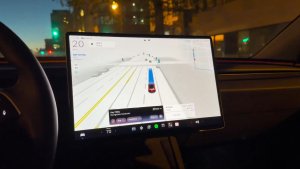
So where do these colorizer changes apply? All throughout the vehicle, and in unexpected places too! It will display the chosen color directly in the visualization, both when parked and moving. These changes will also appear throughout settings and different parts of the car, including the mobile app, and even the Beach Buggy Racing game.
Keep in mind that the Colorizer is only available on Intel or AMD-based vehicles (MCU2+) vehicles – which means legacy vehicles won’t be able to benefit from these software color changes.
Colorizer Settings
The colorizer primarily offers a color wheel for easy selection of whatever hue you’d like to go with – whether for the day, or for longer. It also offers two other options – paint style, and trim style.
The three paint styles – Solid, Matte, and Metallic – are similar to regular car paints. The solid paint style is a flat color that matches most of Tesla’s paint offerings. The matte paint style is a bit smoother, and metallic is much more reflective. In our testing, matte often looks the best on screen.
Tesla also gives you two trim color options. Most legacy vehicles nowadays have chrome trims – and if you’d like to match that or you prefer chrome – you can also choose a chrome trim. Most modern vehicles have black – and it is selected by default.
Saving and Removing Presets
The Colorizer also offers you the ability to save presets – and to switch back to your car’s default paint – whatever it shipped with from the factory. The factory preset is located on the bottom right and quickly swaps the color back to the factory option if you can’t find one you’d like.
You can create new presets after deciding on a new color and pressing the plus box on the bottom left corner of the menu. This will add a new preset to the right of the plus icon. If you want to delete a preset, tap and hold on one, and an X will pop up – allowing you to delete that preset.
Changing Wheels in Software
You can also change your Tesla’s wheels from the car. Everywhere the Colorizer applies – these same changes apply.
You can access this by going to Settings (the grey vehicle icon), and then going down to the Service Menu. From there, select the Wheel and Tire sub-option on the right. You’ll be presented with a list of options.
However, keep in mind that selecting wheel options that do not match your current wheel size will impact your vehicle. Tesla provides a warning in this menu to not mismatch the wheel sizes – as it will impact range estimates and the vehicle’s speed display.