On October 26, Tesla’s VP of AI, Ashok Elluswamy, announced that the company would soon release a fix for multiple warnings when FSD is degraded due to obstructed cameras. This update, part of FSD 12.5.6.2, addresses feedback from Tesla drivers, like X user TGWoodsy, who pointed out that these repeated alerts can be distracting, especially during bad weather.
FSD 12.5.6.2 started rolling out to employees on November 5th and was soon replaced with another update, version 12.5.6.3, a few days later. With FSD 12.5.6.3 now rolling out widely to AI4 vehicles, we have our first look at Tesla’s improved warning system.
Thanks to Jeff on X, we have our first look at Tesla’s new camera-obstructed warning. It now offers clearer, more specific information on which cameras are obstructed and actionable steps to improve visibility.
Warning
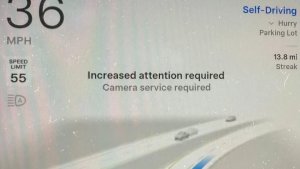
In previous versions, Tesla’s FSD would occasionally display a generic “degraded” warning whenever camera visibility was impacted, especially by rain, snow, or dirt. These warnings could trigger multiple alerts in quick succession, leading to audible notifications that were more distracting than helpful.
In FSD 12.5.6.3, Tesla has revamped this approach. Instead of repeatedly notifying drivers of degraded visibility, the system now provides a similar warning message that shows which camera’s visibility is limited and states that Autopilot features may be limited.
New Alert with Tips

In addition to the warning message, Tesla now displays an alert in the bottom left corner of the UI for Model 3 and Model Y owners that could be swiped away.
This notification gives you some additional information on why Autopilot may be degraded. It looks like Tesla stopped using the term FSD in these alerts and is now using “Autopilot,” hinting that this feature will also be available for regular Autopilot use. This new notification gives you a tip on how to improve camera clarity and even displays a thumbnail of the camera that’s obstructed.
This notification also has a View button that can be tapped to display more information about the camera or cameras that are obstructed.
Detailed View
Tesla has also added an option to view more in-depth information on the obstruction, allowing users to identify which specific camera is impacted and exactly where it’s located on the vehicle. By tapping “View,” drivers can open a detailed modal next to the FSD visualization. This pop-up displays a diagram of the vehicle and highlights the obstructed camera in question. This can be especially useful if it’s one of the front-facing cameras.
Tesla vehicles with Hardware 3 (HW3) have three front-facing cameras, while those with Hardware 4 (HW4) include two. The detailed view outlines the location of the obstructed cameras and shows a larger view of the obstructed camera, giving users a better idea of why it may be obstructed.
This detailed UI isn’t limited to front cameras alone—it’s expected to cover all the exterior cameras, which vary between seven and eight depending on the Tesla model.
This visual aid will be incredibly useful, as not all drivers may be familiar with where the repeater or B-pillar cameras are located.