
The Cybertruck is a unique vehicle, featuring adaptive and adjustable air suspension, rear-wheel steering, and a stainless steel exterior. That also means it is an absolutely fantastic option for going off-road.
However, heading off the pavement requires a good understanding of what your Cybertruck is capable of and how it handles off the beaten path. We’ve put together a guide based on our own experiences taking the Cybertruck off-road, as well as what Tesla provides in their official vehicle manuals, to get you started.
Note: This guide is written primarily for the Cybertruck AWD and Cyberbeast. There are limited Off-Road Mode features available on the Cybertruck LR RWD, and we recommend consulting the manual for that particular vehicle.
Getting Started: Off-Roading Advice
Tesla, as well as experienced off-roaders, will usually offer one key piece of advice when going off-roading. Prepare well, and know your vehicle and what it's capable of before you head off on an adventure. Off-road recovery is challenging, and driving in harsh conditions can be dangerous.
Know Your Vehicle: Familiarize yourself with the Cybertruck’s dimensions, Off-Road and Extract ground clearance, as well as what its approach and departure angles are.
Know Your Route: Whenever possible, scout the trail ahead of you and plan ahead to identify obstacles and assess terrain stability and water depth before driving through them.
Know Your Gear: You should have the necessary recovery equipment and a means of communication when headed off-road. Plan ahead and prepare so that you can stay safe on your trip.
Use a Friend: Don’t off-road solo. Get a friend - preferably with their own vehicle who can help out in case you get stuck. They can also provide an exterior view to help guide you through challenging obstacles
Tire Pressure: Consider lowering your tire pressure at your trailhead for increased traction on slippery or soft surfaces — just remember to re-inflate when you’re done.
Wading: Cybertruck has Wade Mode, which is capable of crossing fairly significant depths - but that doesn’t mean it can be a boat (yet!). Know the depth of the water and how deep you’ll end up.
Off-Road Mode
To access the bevy of specialized off-road settings, you’ll need to put the truck in Off-Road Mode. You can enable Off-Road Mode by entering the Off-Road App from the App Drawer on your screen.
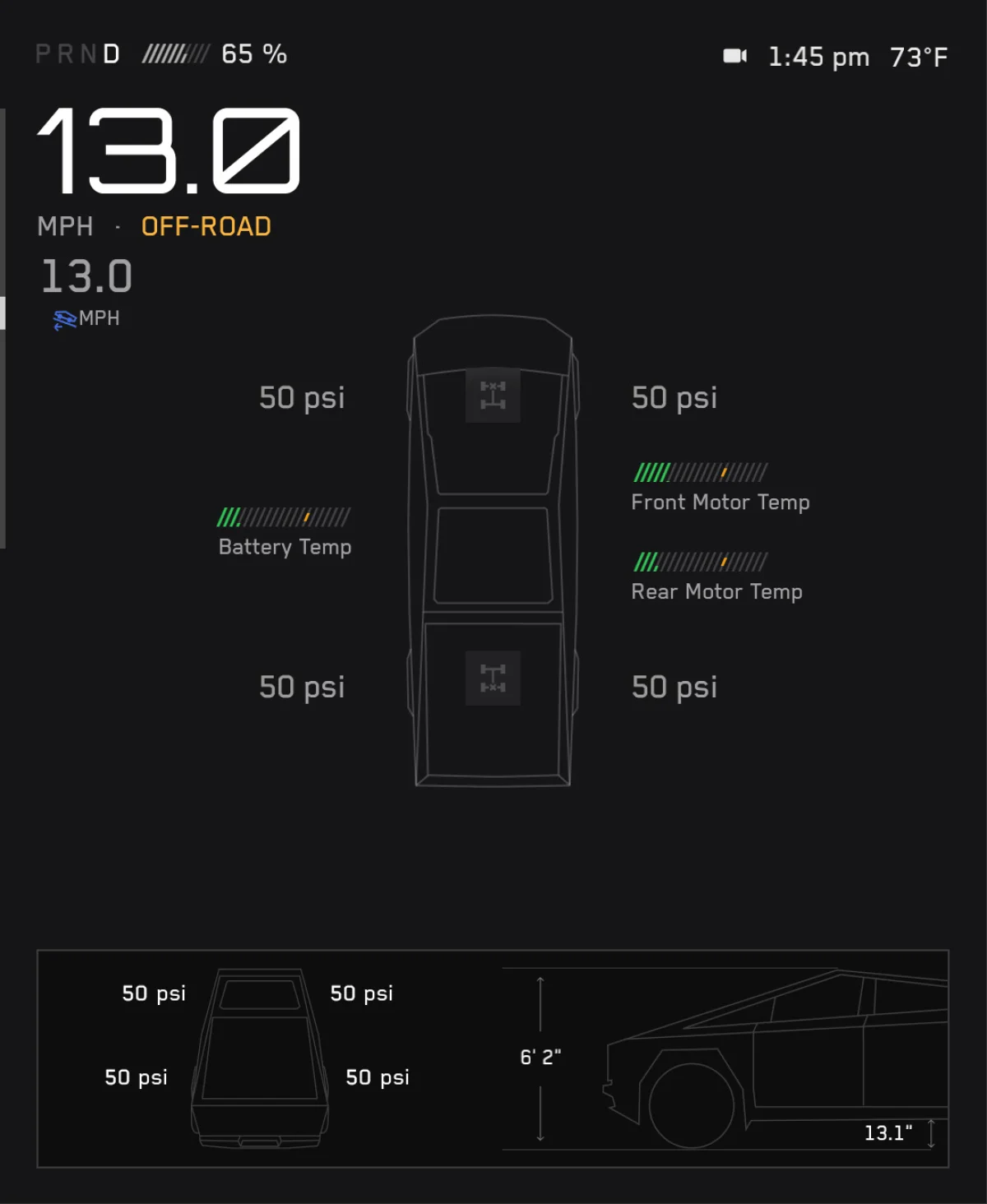
Off Road Mode takes over and gets rid of the usual FSD visualization on the left side of your screen. Instead, you’ll have real-time vital information like pitch and roll angles, tire pressures, differential status, temperatures, and the settings needed to customize them.
As a note, you can only activate Off-Road Mode when the vehicle is in Park.
Ride Heights

The adaptive air suspension is just the first half of the story of the Cybertruck’s off-road capability. You can select from three settings while in Off-Road Mode.
High: This is the default height in Off-Road Mode, and keeps the ground clearance at 12.4 inches, or 316mm. This height is available at all speeds in Off-Road Mode, unlike when driving on regular roads.
Very High: This increases the ground clearance to 14 inches, or 356mm, and is only available in Off-Road Mode. It automatically lowers to High when above 25 mph / 40 km/h.
Extract Mode: Designed to get you over a tight obstacle, this mode is a bit special. It raises the ground clearance to Cybertruck’s maximum height of 16 inches, or 406mm. Speed is limited to 10 mph / 16 km/h, and drops down to Very High when you exceed that speed. Available torque is limited in Extract Mode.
Off-Road Drive Modes
Cybertruck also comes with two Off-Road Drive Modes, Overland Mode and Baja Mode. Each mode also has additional options to tailor it to the specific terrain or adjust the handling specifications to your comfort.
These tailor the truck’s behavior and handling for specific circumstances.
Overland Mode
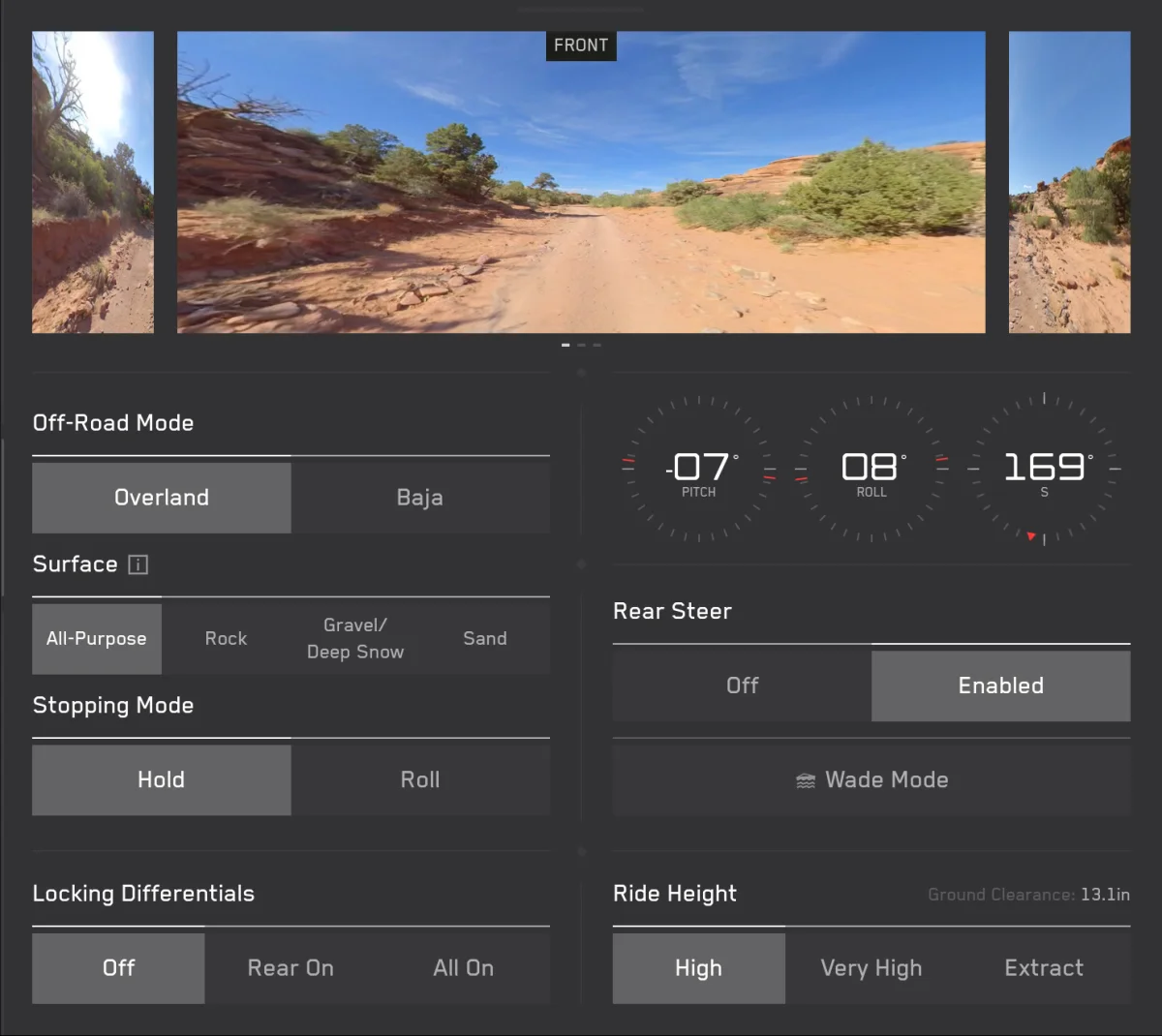
Overland Mode is designed to maximize traction across varying terrain when driving at lower speeds. This is the default Off-Road Drive Mode. Within Overland Mode, you can adjust two key settings, Surface and Stopping Mode.
Surface has four options, including:
All Purpose
Sand
Gravel/Deep Snow
Rock
All Purpose: This defaults the ride height to High, and adjusts the tire slip based on the available traction detected by the vehicle. It is best suited for mixed-terrain driving.
Sand: Allows for high amounts of tire slip to provide optimal traction on soft and deformable surfaces. The default ride height here is also High.
Gravel/Deep Snow: Allows for moderate tire slip to provide traction on gravel or in deep snow. This is the key tool mode to get yourself out of snow if you happen to get stuck. The default ride height here is High.
Rock: This tightly manages tire slip to maximize grip when rock crawling. The preferred ride height here is Very High. Rock Mode also pneumatically connects the springs on the front and rear axles, increasing suspension articulation for maximum traction.
Stopping Mode has two options: Hold and Roll.
Hold is the default stopping mode that applies the brakes when you remove your foot from the accelerator. When stopped on a flat surface or a hill, Hold will keep the brake applied. Tesla warns that Hold may not work as expected in Off-Road Mode due to downward slopes, traction difficulties, or limited regenerative braking due to heat. As such, they recommend being prepared to use the brake pedal as required
Roll allows the Cybertruck to roll until it comes to a natural stop. The motors do not apply torque to slow down the vehicle - regenerative braking is turned off.
Baja Mode
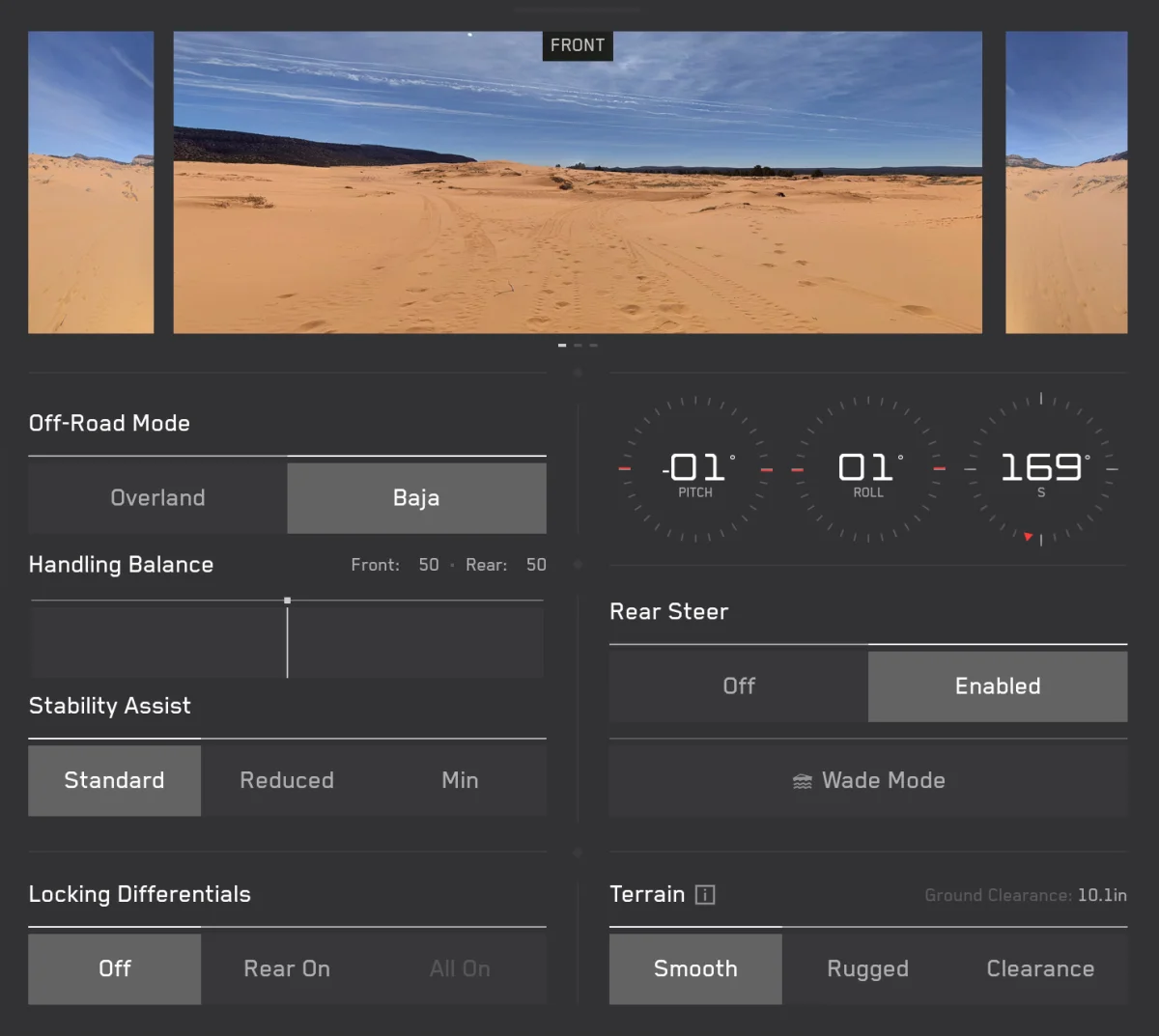
Baja Mode optimizes the adaptive damping dynamically based on the Terrain selection to optimize performance for high-speed off-road driving. The stability control in Baja mode also allows for more tire slip on low-traction surfaces. If you’ve ever wanted to do donuts in your Cybertruck, Baja Mode is the way.
Baja Mode comes with a slew of settings: Handling Balance, Stability Assist, Terrain, and Deceleration Mode to tighten the settings and handling preferences.
Handling Balance has two options, Front or Rear Bias. With a Front Bias (slider left), the Cybertruck behaves like a front-wheel-drive vehicle. This means that when you turn, your truck will understeer and turn less than normal. This provides more stability, and the truck will feel more glued to the ground. With a Rear Bias (slider right), the Cybertruck behaves like a rear-wheel-drive vehicle, and will move with more agility but less stability. This also means you will oversteer and turn more than usual. If you’re looking for donuts - set the Rear Bias to max.
Stability Assist has three options. Standard, Reduced, and Minimal. Stability control intervention modifies motor torque and selectively applies the brakes to each wheel, making the Cybertruck more stable and helping to maintain control of the vehicle. When in Off-Road Mode, even Standard provides less-than-normal stability control, while Reduced further cuts it down. Minimal Mode mostly removes it - but comes with a red flag warning - Cybertruck may not self-stabilize and could roll, and Tesla recommends only experienced and advanced drivers use this mode.
Terrain has three options, but it is drastically different from Overland Mode. Here, you can select from Smooth, Rugged, and Clearance. Smooth sets the ride height to Medium and increases suspension damping for greater body control and response handling. You’ll want to select this if you want to drift or do high-speed driving on flat terrain. Rugged sets the ride height to high, and is optimized for rough terrain with medium-sized obstacles and Whoops (rolling bumps). Clearance sets the ride height to Very High for clearing larger obstacles.
Deceleration Mode has two options, High and Standard. High increases the amount of regenerative braking, allowing for more dynamic one-pedal driving - but may cause some loss of traction on loose surfaces. Standard is the normal level of regenerative braking, with no differences. There is no reduced level of regenerative braking - use Roll Mode in Overland for that.
Off-Road Mode Features
Other than the Drive Modes, there are two additional features to take a look at.
Wade Mode: Wade Mode pressurizes the Cybertruck’s battery pack, allowing it to enter and drive through bodies of water. Wade Mode’s maximum fording depth is 32 inches, measured from the bottom of the tire. Tesla recommends that Wade Mode be enabled anytime the Cybertruck is being driven through shallow bodies of water, such as rivers or ponds.
To enable Wade Mode, you must close all doors and windows, and the vehicle’s speed must be below 20mph (32km/h). In the Off-Road App, select Wade. Once enabled, Wade Mode appears on the vehicle’s screen, and a 30-minute timer begins - Wade Mode is limited to 30 minutes, and there is a cooldown time between uses. Plan your route well to avoid overheating the air compressor.
Wade Mode also sets the vehicle’s ride height to Very High. Tesla recommends driving through water at low speeds of 1-3 mph (2-5 km/h). Wade Mode should not be disengaged until the vehicle is fully clear of water.
Trail Assist: Available only in Overland Mode, Trail Assist maintains the vehicle's speed to provide greater steering control during steep ascents or descents. To enable this, in the Off-Road App, or through Controls > Dynamics > Off-Road, select Trail Assist.
You can then set the Trail Assist speed between 1-25 mph (2 km/h - 40 km/h). Just like FSD, you can change the set speed using the right scroll wheel. Using the accelerator or brake pedals will temporarily increase or reduce speed - Cybertruck will automatically change to the set speed once a pedal is released. If you simultaneously brake to a lower speed and swipe down on the right scroll wheel, or accelerate and swipe up, the set speed will automatically snap to the current speed.
TAPPING THE BRAKE DOES NOT DISENGAGE TRAIL ASSIST. Pressing and holding the brake pedal when stopped will disengage Trail Assist. Trail Assist disengages and returns to your normal driving settings if you accelerate above 30 mph (48 km/h). It reactivates when you drive below 30 mph (48 km/h).
Jump Assist: An always-active safety feature in Off-Road Mode, if Cybertruck detects it is in the air, it will immediately extend the suspension to its maximum height to absorb as much of the landing impact as possible. Be aware that jumping the Cybertruck can cause unseen damage. Jumps should be carefully planned if they are going to be done.
Locking Differentials
Locking differentials are crucial for serious off-roading. It ensures that power is transferred to the wheel or wheels with the most grip. Essentially, this locks the wheels on an axle together, forcing them to rotate at the same speed. This distributes torque across the axle based on the available traction in each wheel. When one of the locked wheels has significantly reduced traction, more torque is applied to the wheel with greater traction - helping you to keep moving in low-traction environments.
There are some technical differences with how Tesla has implemented the lockers on the Cybertruck. The AWD Cybertruck uses mechanical front and rear lockers, while the Cyberbeast uses a mechanical front locker and a virtual rear locker. The virtual rear locking differential automatically engages in certain drive modes and speeds, and cannot be manually engaged or disengaged.
On-Road
Engaging locking differentials will increase the Cybertruck’s turn radius, and can cause unintended damage or effects when used inappropriately. It should be used temporarily to get extra grip on loose or uneven terrain if used on-road.
You can engage them by going to Controls > Dynamics > Engage Rear Locking Differential. This also enables the Slippery Surfaces option for additional traction. Do not use the locks to drive normally on slick surfaces.
This option is not available on the Cyberbeast due to the virtual rear locker.
Off-Road
The rear locking differentials are ideal for off-roading uphill or on level surfaces. Front locking differentials are typically used when you need more traction at the front of the vehicle, like rock crawling.
To engage, go to the Off-Road App and select the options you want to enable:
For AWD: All-On, Rear Only, or Off.
For Cyberbeast: Front Only or Off.
You can also tap the locker icon in the vehicle status on the left to turn on or off the lockers. You may need to drive a short distance to engage or disengage the lockers. Once the locking differentials are fully engaged, the vehicle may slightly rock side to side when turning at low speeds. This is normal behavior when the touchscreen indicates a fully engaged locker, marked by a solid orange icon.
The locking differentials may cancel or delay engaging in various cases. If the locking differentials are unable to engage, you will hear a chime, and a message will display on the touchscreen explaining how to address it.
Disengaging
To disengage the lockers, touch the icon on the touchscreen or set the option in the menu to Off. You may need to drive a short distance for them to disengage fully. When the vehicle shifts out of drive, or if a different drive mode is selected, the lockers may automatically disengage.
Wrap-Up
That covers most of what you need to know when off-roading with your Cybertruck. Drive safe, and tread gently off the beaten path. Check out this video from Top Gear reviewing the Cybertruck’s Off-Road Mode, too.
Follow Us on Google
Add Not a Tesla App as a preferred source on Google to see more of our stories in Top Stories.
Add to Preferred Sources