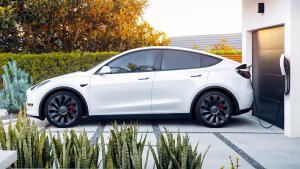
As part of Tesla’s undocumented features in update 2025.38, Tesla introduced new charging visualizations, including a unique view for different types of chargers.
The charging visualizations will appear for any vehicle that’s connected to a charger, regardless of whether it’s a Tesla charger.
Similar to the Tesla app, the charging cable will show the flow of energy going from the charger to the vehicle. The color of the cable will change to indicate different things; for example, if it’s blue, the charger is establishing a connection, and if it’s green, it’s actively charging the vehicle.
Let’s take a look at all the various charging visualizations.
Mobile Connector
If you’re connected using a mobile connector, the visualization will display the Gen 2 Mobile Connector mounted to a post behind your vehicle. For now, there doesn’t appear to be a particular display for the Gen 3 PowerShare Mobile Connector.
Wall Connector
For owners of a Wall Connector, Tesla also displays this charger in the visualization. Like the mobile connector, it’s mounted on a pole behind the vehicle.

PowerShare
Tesla’s PowerShare in the Cybertruck currently does not display a unique model for the Universal Wall Connector + PowerShare Gateway. It also does not display a unique model if the PowerShare Outlet Adapter is in use at this time.
Supercharger
In addition to home chargers, Tesla also displays a Supercharger visualization when you’re connected to Tesla’s DC chargers.
Currently, Tesla will display a V2/V3 Supercharger regardless of the type of Supercharger you’re connected to. However, according to Tesla’s Director of Charging, Max de Zegher, Tesla will add the V4 Supercharger style in a future software update.
These charging visualizations are very detailed. For Superchargers, you can see how the words Tesla light up on the Supercharger.

Third-Party Charger
Tesla also provides a generic visualization for third-party chargers. This is a large box with a light strip on the upper half and a circle in the middle, once again, mounted on a post behind the vehicle.

Intel Visualizations

While the charging visualizations are much nicer on AMD-based vehicles, thanks to their large parked screen, they also show up on Intel vehicles.
Charger visualizations on Intel vehicles will show up on the vehicle’s visualization display on the left side of the screen. Since the area is smaller, the charger is typically cut off; however, you can pan, tilt, and zoom in on the visualization.
Visualizations are also slightly more simplified on Intel vehicles and don’t include reflections, shadows, and the glass is less transparent.
Tesla typically uses the same 3D models across the vehicle software and the Tesla app, so there’s a chance we’ll see these new visualizations in an upcoming app update.
Follow Us on Google
Add Not a Tesla App as a preferred source on Google to see more of our stories in Top Stories.
Add to Preferred Sources