Tesla owners are always looking for ways to make their on-screen experience feel as premium as the car they are driving. While the Spring 2026 Software Update brought some jaw-dropping Unreal Engine-based visualizations to the refreshed Model 3 and Model Y, many people with older systems have felt a bit left out.
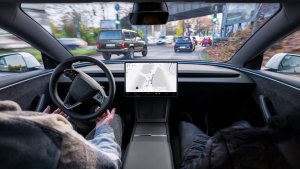
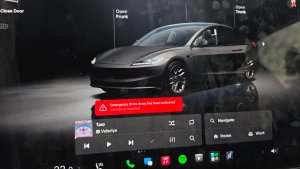
If you are driving an Intel-powered Tesla, you might have noticed that your vehicle's on-screen avatar looks a little different — and a little "darker" — than those in newer AMD-powered cars.

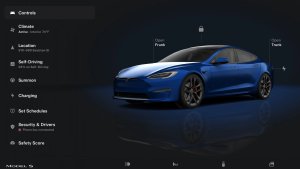
Tesla does a fantastic job of maintaining feature parity between hardware generations, but there are subtle differences designed to save on processing power. One of the most obvious gaps is the lack of transparency for the glass roof and windows in the visualization.
On an AMD vehicle, the glass is much more transparent, allowing you to easily see the interior. On Intel vehicles, it’s much darker, often looking completely opaque. However, thanks to the Paint Shop feature that debuted in the 2025 Holiday Update, we can actually close that gap ourselves.


Understanding the Intel vs. AMD Divide
The Spring 2026 Software Update introduced high-fidelity parked vehicle visualizations that feature advanced lighting effects and realistic reflections. Unfortunately, these specific Unreal Engine-based upgrades are restricted to AMD-based vehicles because they require additional computing power.
While Intel-based Teslas are still getting many of the new features, they don't get the full-screen interactive visualization. Instead, Intel users see a more basic version in which the vehicle’s glass is rendered almost pitch-black. By manually adjusting the "virtual" window tint, you can reduce this darkness on your screen, making your older car’s avatar look more like the modern AMD visualizations.
How to Use the Paint Shop to Fix Your Tint
The Paint Shop app is a massive step up from the old "Colorizer" tool, and it is fully supported on Intel-based Tesla vehicles. It allows for custom vehicle wraps, license plates, and — most importantly for this fix — tint adjustment. You can even create and use your own custom wraps to truly personalize your car's digital twin.

Here is how you can adjust your Intel Tesla’s avatar to show its interior:
Open Toybox: Tap the App Drawer icon on your touchscreen and look for the Toybox app.
Launch Paint Shop: Within the Toybox, select the Paint Shop app.
Navigate to the Tint Tab: You will see options for Color, Wrap, and Tint.
Adjust Tint Darkness: Use the slider to reduce the tint darkness to 0% or a very low level. As you slide it toward transparent, you will notice the interior of your car finally becomes visible in the visualization.
Save Your Settings: These changes will apply to your car's avatar and will also sync with the visualization in your Tesla mobile app.
Why This Simple Change Matters
While this is a small detail, being able to see your vehicle's interior on the screen improves visualization and makes it feel more realistic. The dark, opaque windows in the standard Intel visualization can make the vehicle look more like a toy than a realistic rendering of your car.
Whether you are matching your car's actual window tint or just trying to mimic the high-end reflections of the Spring 2026 update, this is the easiest way to improve the visualization on your Intel-powered Model 3 or Model Y.
It is always great to see Tesla provide these customization tools that work across hardware generations. We expect the company to continue adding more personality to the "virtual car" experience, perhaps even adding more interior customization in future updates.
Follow Us on Google
Add Not a Tesla App as a preferred source on Google to see more of our stories in Top Stories.
Add to Preferred Sources