Tesla update 2026.14.6.10 with FSD v14.3.4 has begun rolling out to early-access testers, and it includes a bevy of FSD-related UI features. While the headline feature is the launch of Actually Smart Summon and Dumb Summon for the Cybertruck, these UI features will come to the entire AI4 fleet with FSD.
Updated Destination Menu
The newest release updates the parking options slightly. The updated Destination Menu now appears on screen whenever you’re arriving at your destination, in case you want to switch your parking option.
The curb-side option has been replaced by Pull Over, but it’s unclear whether the functionality differs in any way. It’s likely just a name change to make the functionality clearer.
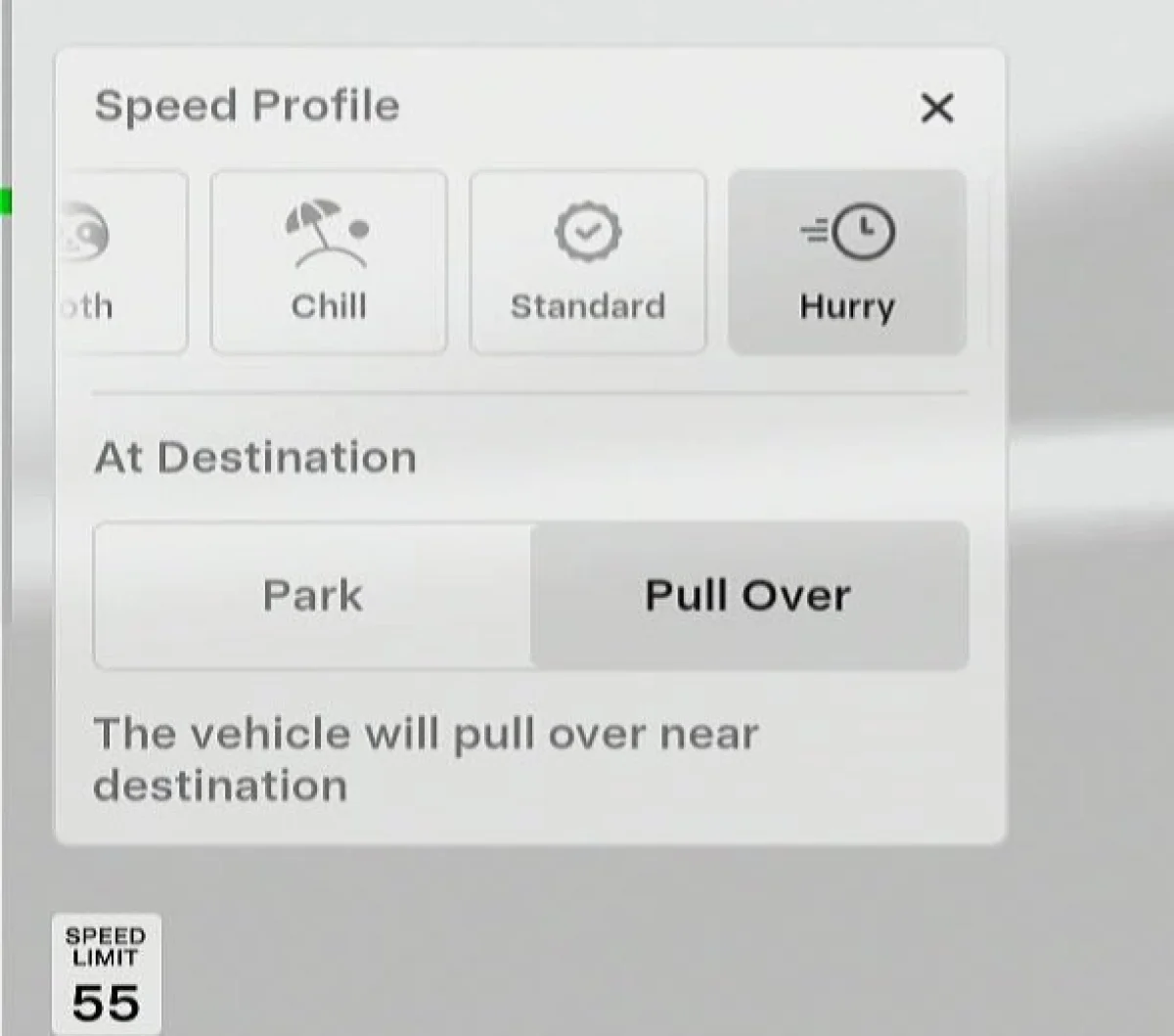
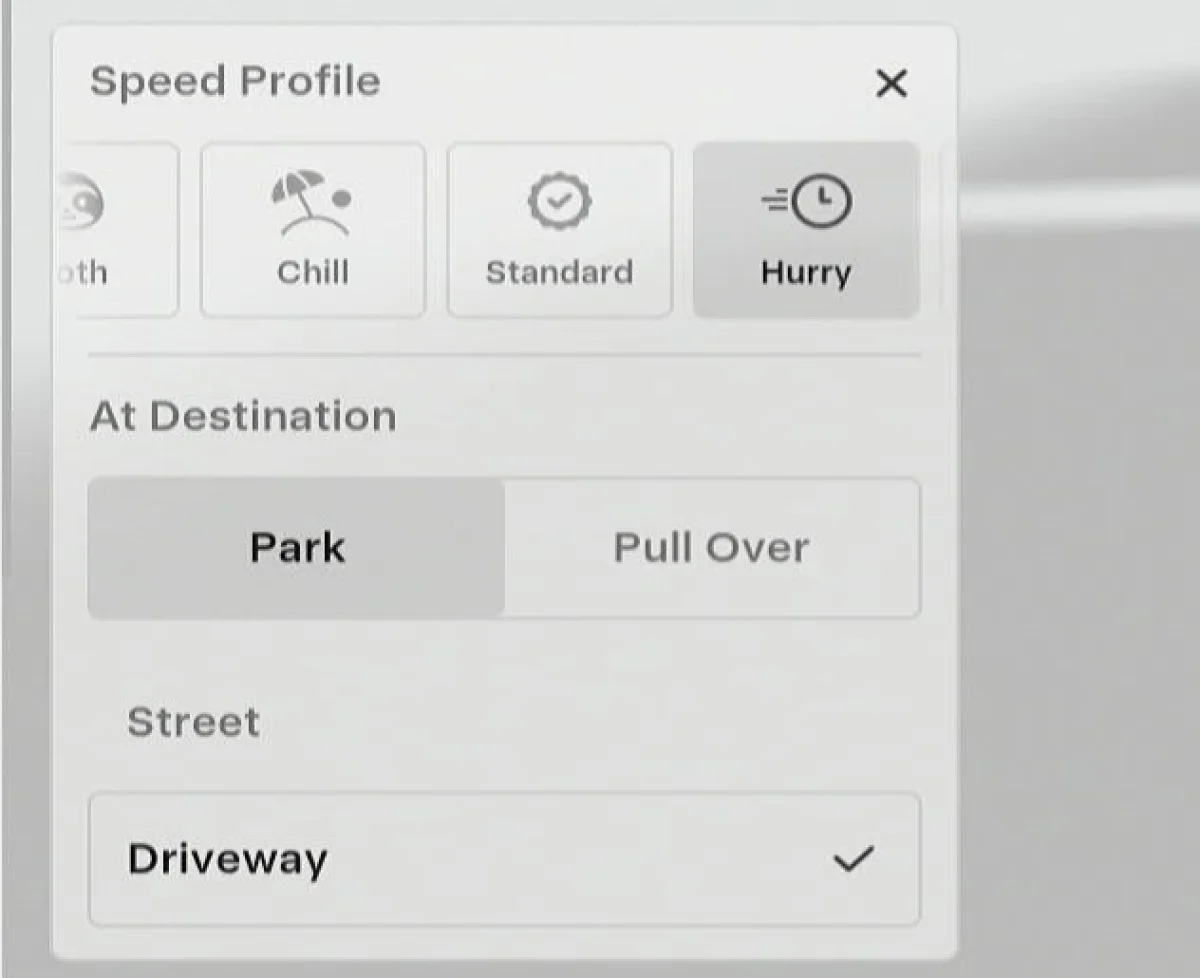
The rest of the parking destination options remain the same, including Driveway, Charger, Parking Garage, Parking Lot, and others. The options that appear will vary by location.
For now, no new granular options, such as selecting back-in versus front-in parking or designating handicapped preferences, have been added.
Destination UI Pop-Up
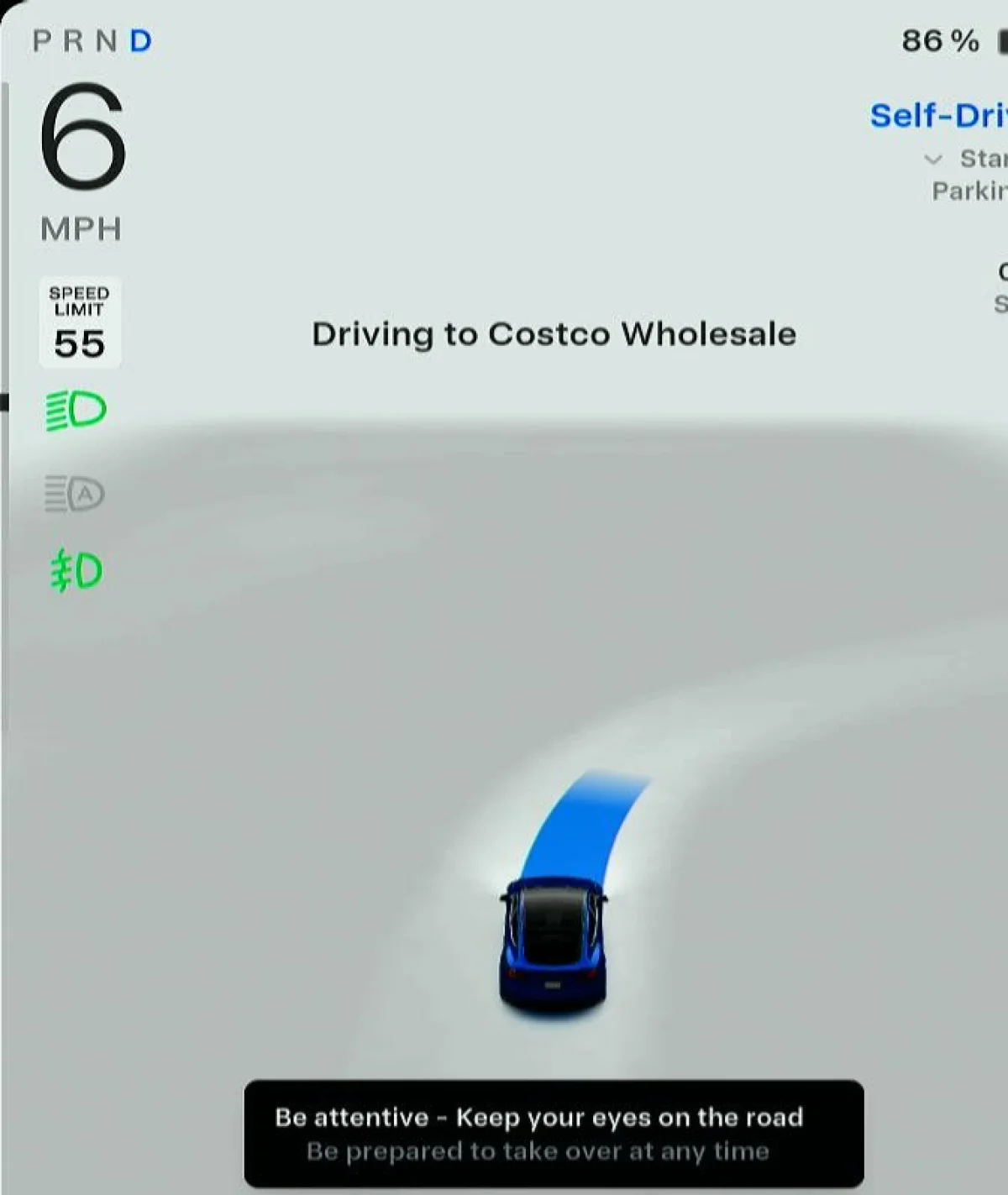
When FSD is engaged at the start of the trip, your destination will be shown front and center in the UI, along with the “Driving to X” text.
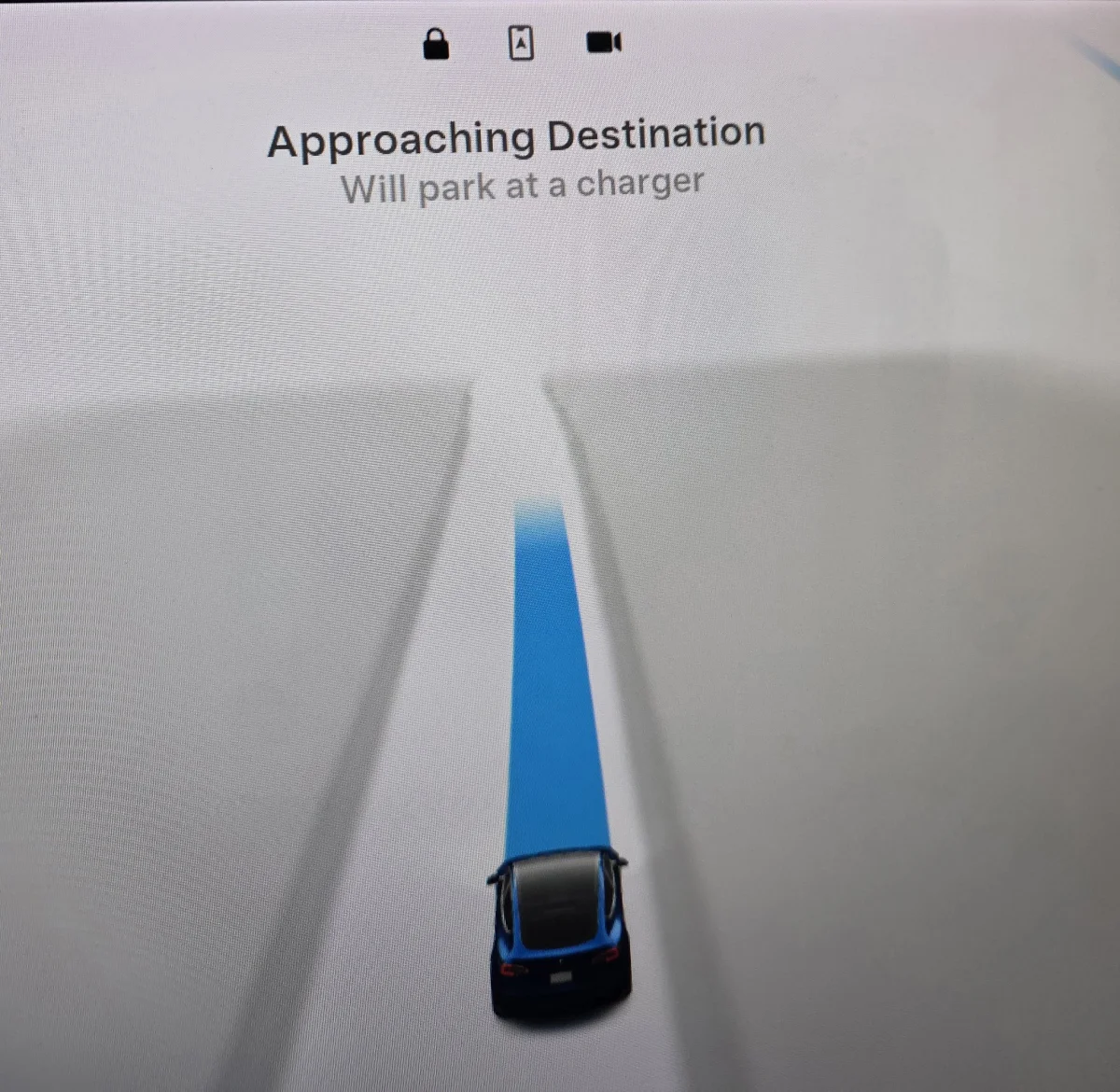
Once you approach your destination, FSD will pop up with “Approaching Destination, Will park at X/Will pull over,” based on the destination options you selected in the updated menu.
These are really nice, simple additions that make it much easier to understand what FSD is doing, even if it’s the options the driver picked at the start of the drive.
Latest FSD drama just dropped.
— Dirty Tesla (@DirtyTesLa) June 12, 2026
Every time you approach your destination you get this pop-up
👍 or 👎 pic.twitter.com/mltDadt6Cd
Add New Stop Button
Finally, Tesla has also edited the trip card at the bottom of the screen. A new “Pin +” button has been added next to the End Trip button. Pressing this will add a stop to your trip. This makes it much easier for the user to add a stop between their current location and final destination.
Previously, you’d have to tap the three dots and choose Edit Trip and then add another destination. This saves the driver a tap and makes the feature much more discoverable.
Adding a destination will now also add the new destination after your current destination, meaning you no longer have to tap Edit Trip a second time and move the new item around for proper navigation.

Edit Trip is still located in the pop-out menu and still functions the same to manage more destinations and stops.
FSD Celebrations
Update: Tesla has also introduced new FSD celebrations with confetti in this update.
Follow Us on Google
Add Not a Tesla App as a preferred source on Google to see more of our stories in Top Stories.
Add to Preferred Sources