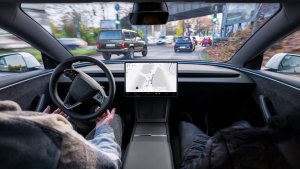
Tesla has supported voice commands for quite a few years now. However they’re steadily increasing the commands available and now support well over 100 different commands. If you’re not familiar with all of them, you can take a look at our full list of known voice commands.
The list can be quite overwhelming and most drivers are likely to not retain any of them, but here is our list of the top 5 most useful voice commands. Remembering these commands will likely make it that much safer and easier to execute while driving.
1. Mute Voice Guidance
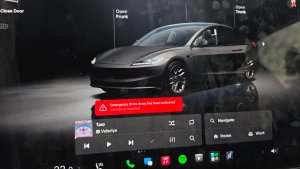
If you’re anything like me, you often set the GPS even if you know where you’re going. Having the GPS guidance on all of the time can be a little annoying. Now you can easily say mute or "unmute voice guidance" to adjust the GPS voice prompts.
2. Open Glove Box
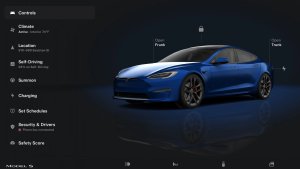
This one is another time saver. The glove box normally requires two taps to open. One to get into the Car Controls, and another to Open glove box. Although that’s not difficult, using the voice command is even easier. Simply say “Open Glove box,” to open it.
3. Navigate to
Hopefully you’re already aware of this one, because it may just be the most useful voice command.
Simply state, “Navigate to,” followed by either an address or the name of a location to quickly set the GPS destination. For example, “Navigate to McDonald’s in Fremont” would navigate to McDonald's in Fremont, CA. To make things easier, you can skip the state or city entirely and it will search in the city or state you're in.
4. Set temperature to
Instead of having to manually adjust the temperature in the car, you can easily just say “Set temperature to,” followed by your desired temperature. Easy and quick.
5. Search Google for
This one is super useful when you need a quick answer. If you’re not familiar with it, it will save you a lot of time. If you need a quick answer to a common question, such as, what’s 70 degrees in Celsius, or what time is it in London, or even what is Tesla’s stock price, you can do this all with a voice command. It leverages Google to kind of take place of a smart assistant. Just say “Search Google for,” and state your question. The car will open the web browser and search Google with your query. Google will often display the answer to your question right at the top of the page.
Using Tesla voice commands can make some actions not only quicker, but also safer to use while driving.
Follow Us on Google
Add Not a Tesla App as a preferred source on Google to see more of our stories in Top Stories.
Add to Preferred Sources