








FSD (Supervised) v14 Lite
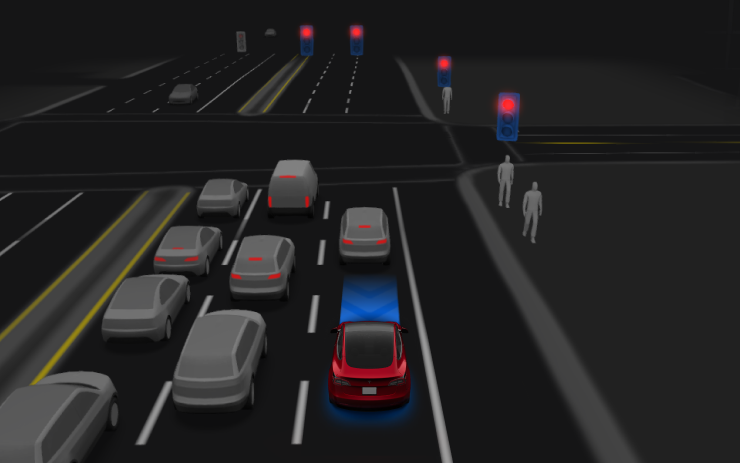
FSD (Supervised) v14 Lite includes:
- Distilled the intelligence from HW4 V14 into HW3. This allows HW3 to directly learn how to handle scenarios using HW4 V14 as a guide. This process unlocks the improvements that have been made to HW4 including Reinforcement Learning (RL) and offline models for HW3.
- Improved both proactive and reactive responsiveness across a wide variety of categories including navigation handling, merges and forks, pedestrian interactions, traffic lights, and vehicle cut-in scenarios.
- Improved general comfort in nominal scenarios through fewer false slowdowns, smoother steering and more consistent lane centering.
- Introduced parking, unparking, and reversing capabilities.
- Added Arrival Options for you to select where FSD should pull over or park: in a Parking Lot, on the Street, in a Driveway.
- Speed Profiles are now available at all times, to further customize driving style preference.
Self-Driving App

With the new Self-Driving app, subscribe with a single tap, learn how to activate and use the feature, and view ongoing stats.
To open, go to App Launcher > Self-Driving.
Start Self-Driving from Park
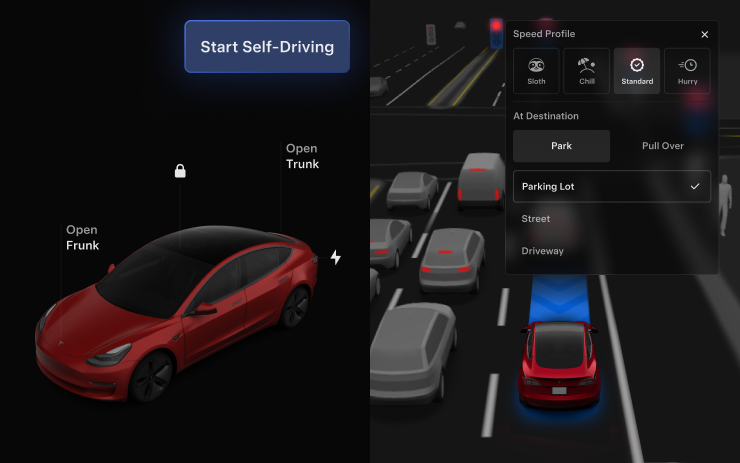
A button will appear on the screen when driver requirements are met. Driver requirements include (but are not limited to):
- Driver is seated in driver's seat
- Driver is buckled
- Cabin Camera is unobstructed
Brake Confirm requires the driver to press and release the brake pedal before FSD (Supervised) can be activated. When Brake Confirm is disabled, pressing the button will allow Self-Driving to apply the brakes and engage FSD (Supervised). If driver detection requirements are not met or if FSD (Supervised) does not detect a driver, you will be required to press and release the brake pedal to confirm. You can enable Brake Confirm in Self-Driving > Brake Confirm.
This feature does not make your vehicle autonomous and you must remain attentive and be ready to take over at any time. Only a licensed driver authorized to operate the vehicle should be allowed access to the driver's seat position any time the vehicle is not in Theater or Arcade modes.
Arrival Options
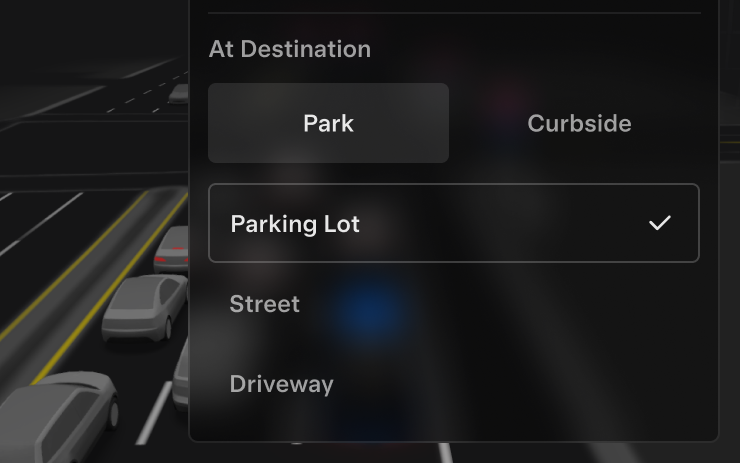
- You can now select an arrival option such as Parking Lot, Street, Driveway, and Pull Over for Robotaxi-style drop offs.
- Your preferences for arrival options and preferred parking positions are persisted for each destination.
Speed Profiles
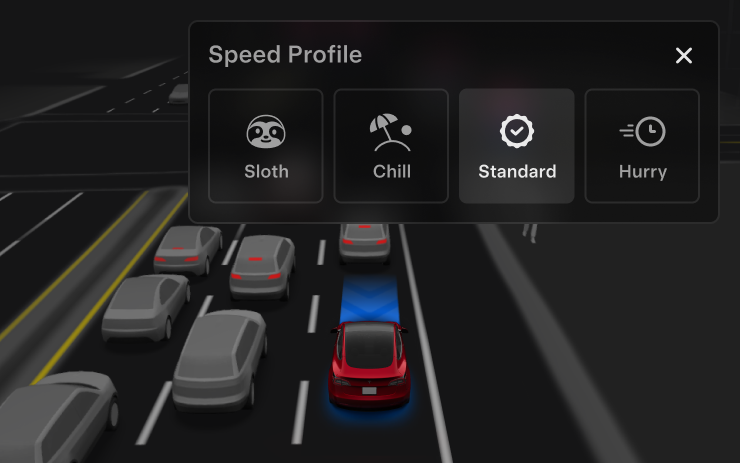
FSD (Supervised) will now determine the appropriate speed based on a mix of driver profile, speed limit, and surrounding traffic.
- Introduced new Speed Profile SLOTH, which comes with lower speeds & more conservative lane selection than CHILL.
- Driver profile now has a stronger impact on behavior. The more assertive the profile, the higher the max speed.
- Right scroll-wheel up/down now adjusts Speed Profile setting rather than your precise max speed offset selection in mph/kph.
UI Improvements
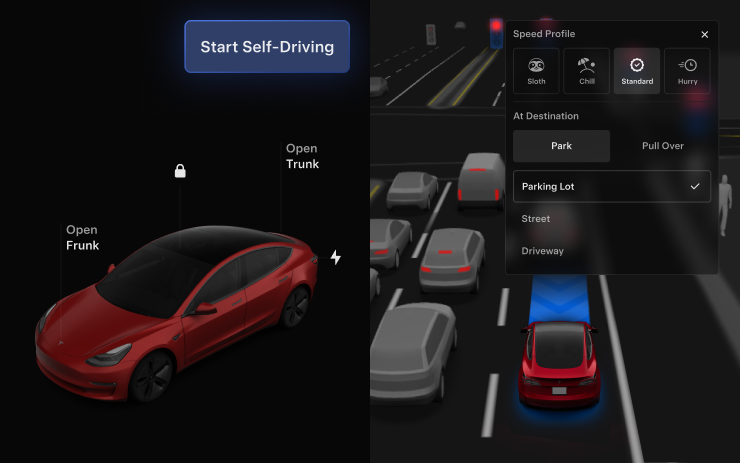
Adjust settings like the Speed Profile and Arrival Options directly from the Self-Driving visualization on the center display.
Full Self-Driving (Supervised)
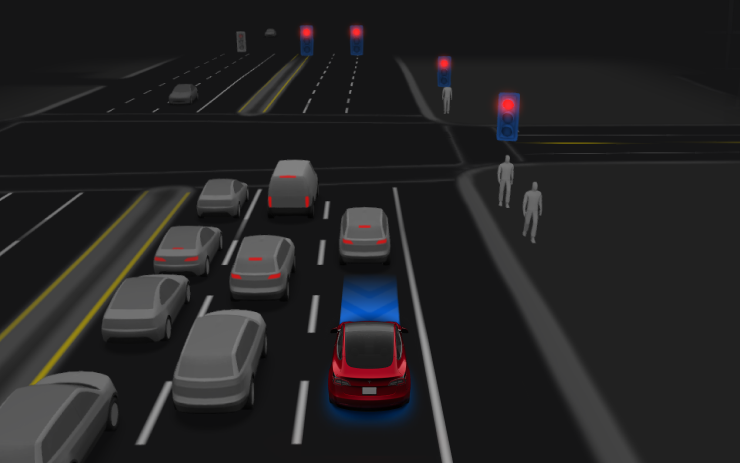
Under your supervision, Full Self-Driving (Supervised) can drive your Tesla almost anywhere. It will start from a parked position, make lane changes, select forks to follow your navigation route, navigate around other vehicles and objects, make left and right turns and park at your destination.
You and anyone you authorize must use additional caution and remain attentive. It does not make your vehicle autonomous. Do not become complacent. Full Self-Driving (Supervised) is enabled on your vehicle. To use the feature, press the Start Self-Driving button on the UI, or press the right scroll wheel button once. You can disable Full Self-Driving (Supervised) in Self-Driving Settings.
Navigation Lane Guidance
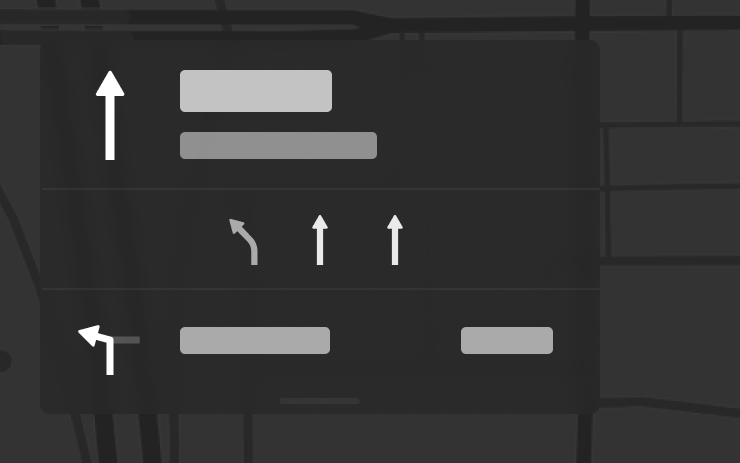
Navigation now shows which lanes to take to follow your route. This feature requires Online Routing and Maps version 2026.20 or later. To enable, go to Controls > Navigation > Online Routing.
Send Destination to Car
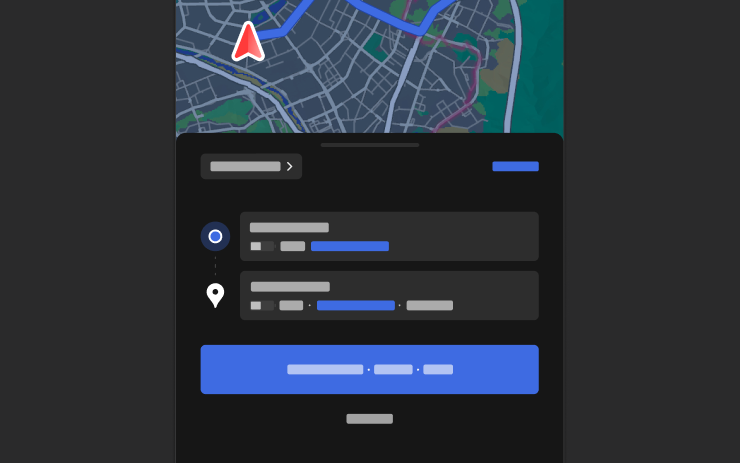
You can now send navigation destinations directly to your Tesla. To send from the Mobile App, go to Location > Navigate, add a destination, and tap Send to Car. Requires Mobile App version 4.57.0 or later.
To send from NAVER Maps or TMAP, add a destination and go to Share > Tesla. To send from KakaoMap, add a destination and go to Share > Share Address > Tesla.
Weather Maps
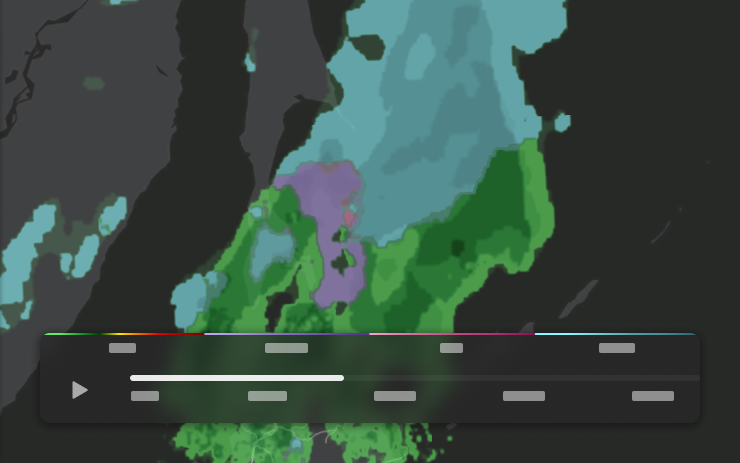
Maps now show weather data, including different types of precipitation like rain and snow. You can also view the past hour of weather data to see how conditions have been changing along your route. This feature requires Premium Connectivity. To view, tap the weather icon on the map.
Points of Interest
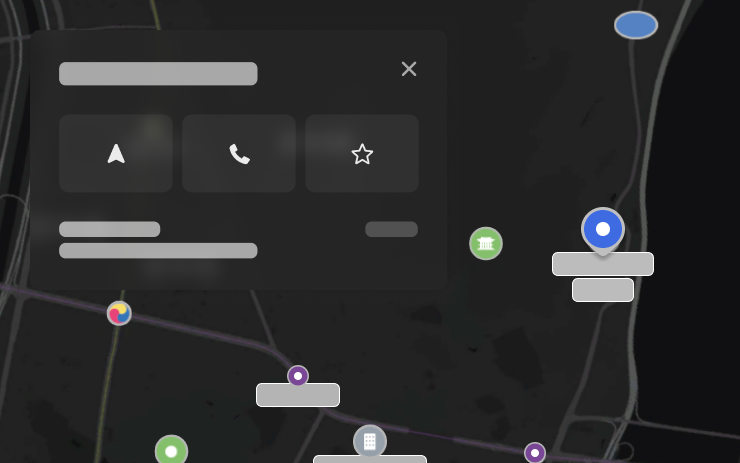
You can now tap on points of interest on the map to explore destinations or begin navigation.
Tesla App FSD
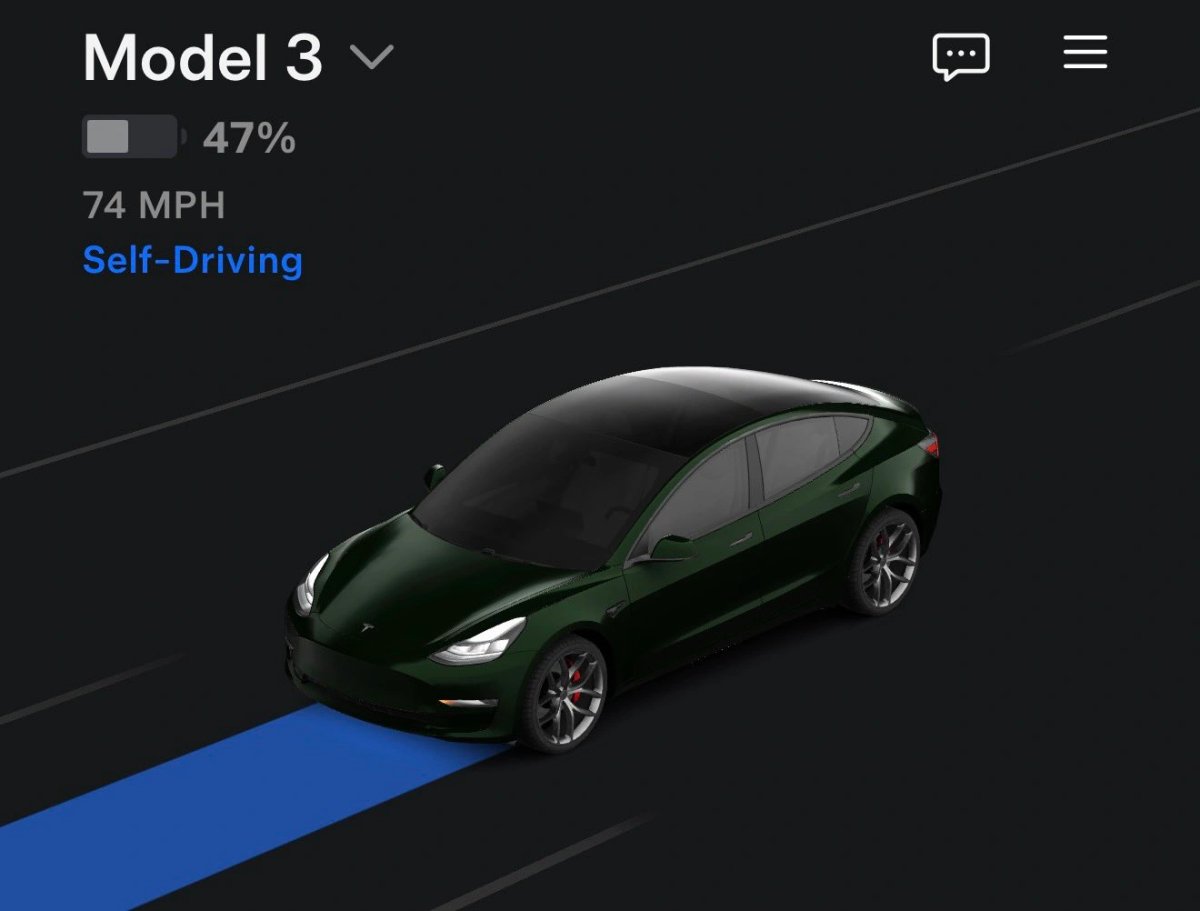
Tesla will now display whether a vehicle has FSD enabled in the Tesla app. In addition, the app will now also display the blue FSD path and even the rainbow road easter egg if it’s enabled in the vehicle.
This requires Tesla app update 4.58.5 or higher and vehicle update 2026.20.6.1 or higher.
License Plate Frame
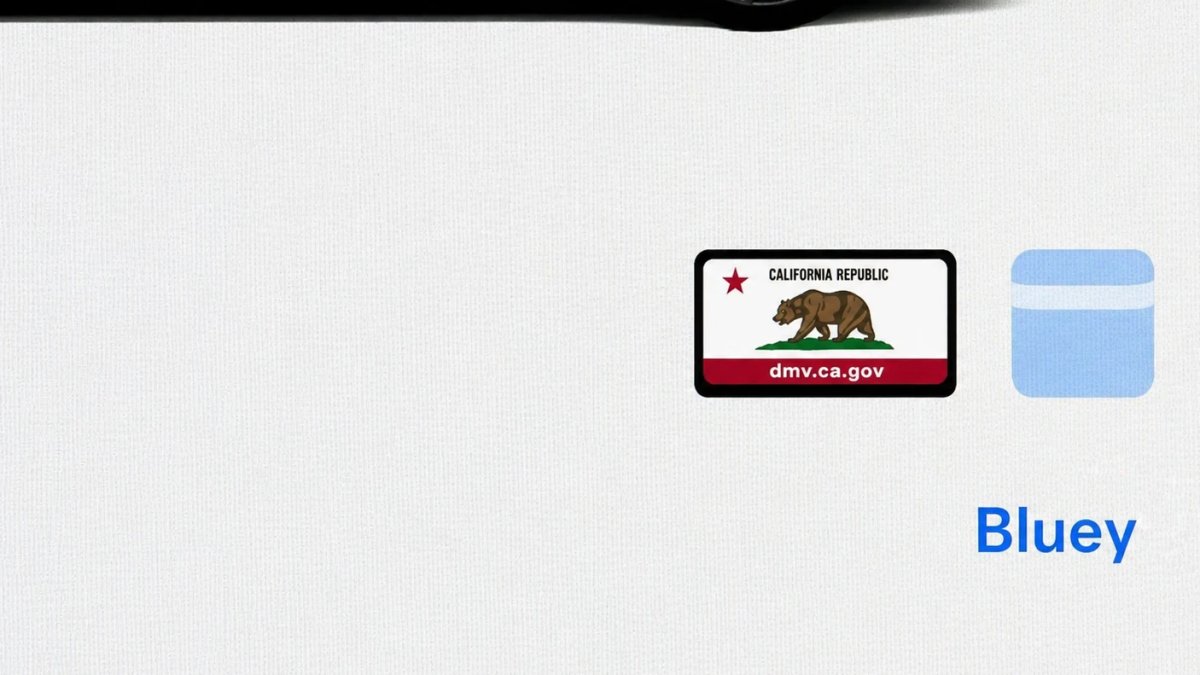
With Tesla’s recent addition of license plate customization, they also added a shortcut for it under Controls > Software.
With this update, Tesla tweaked the icon slightly by adding a license plate frame around the license plate image being used for a cleaner look.
Decrypt Dashcam Video
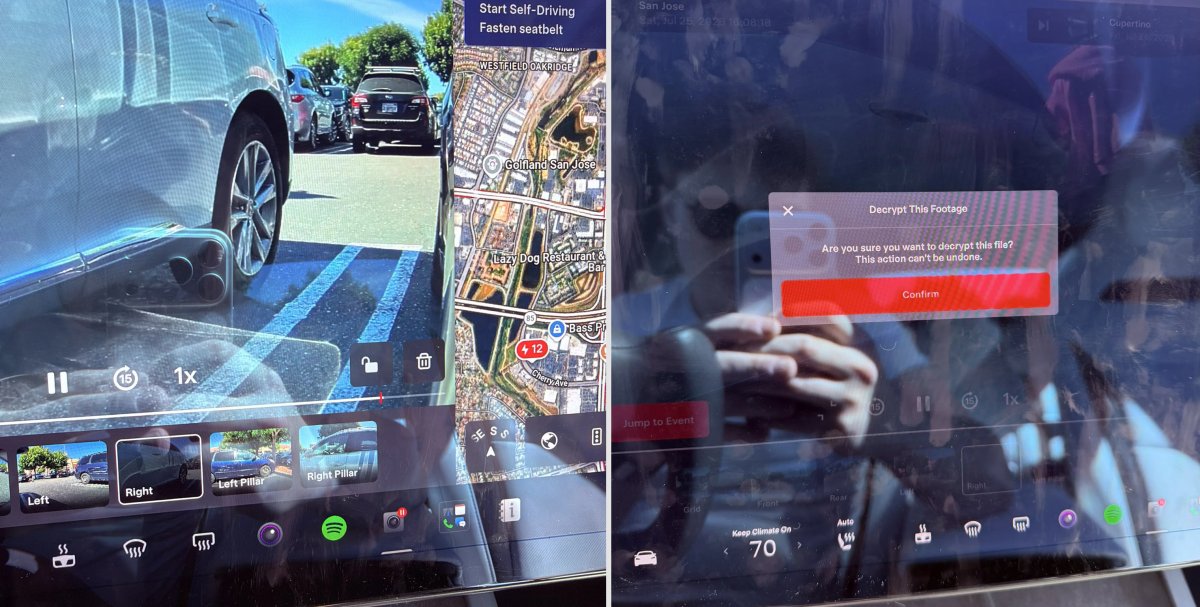
In update 2026.20, Tesla started encrypting Dashcam footage. This came at the same time as Tesla expanded recent video footage from 1 hour to up to 24 hours under certain requirements.
Encrypting the videos is an important privacy change, since if your USB drive is pulled from your vehicle, thieves can now have access to up to 24 hours of your driving, potentially revealing your workplace, home, and other important locations.
With this update, Tesla also added a button to the Dashcam Viewer that lets owners easily decrypt a specific clip, making it easier to see the footage if they mount the USB drive to their computer.
Tesla also introduced a tool that lets you decrypt any videos on your computer, as long as you log in to your Tesla account to prove that you own the video footage.
Bus Lanes
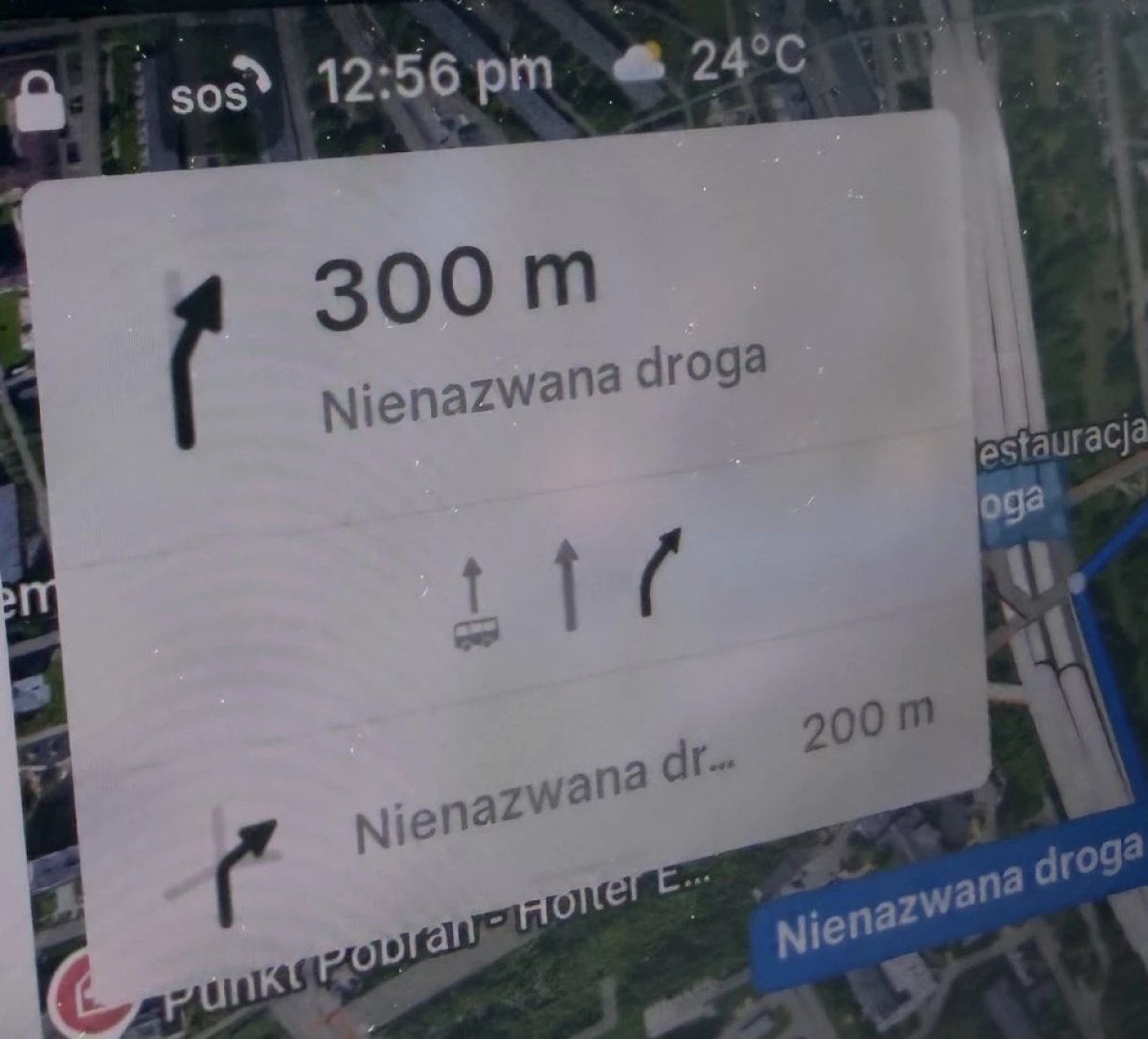
Tesla’s navigation now supports bus lanes, helping drivers be more aware of which lanes they can use.
This is even more important for FSD, so the vehicle can know which lanes are appropriate to drive in without having to read or potentially miss signs.
Service Mode Improvements
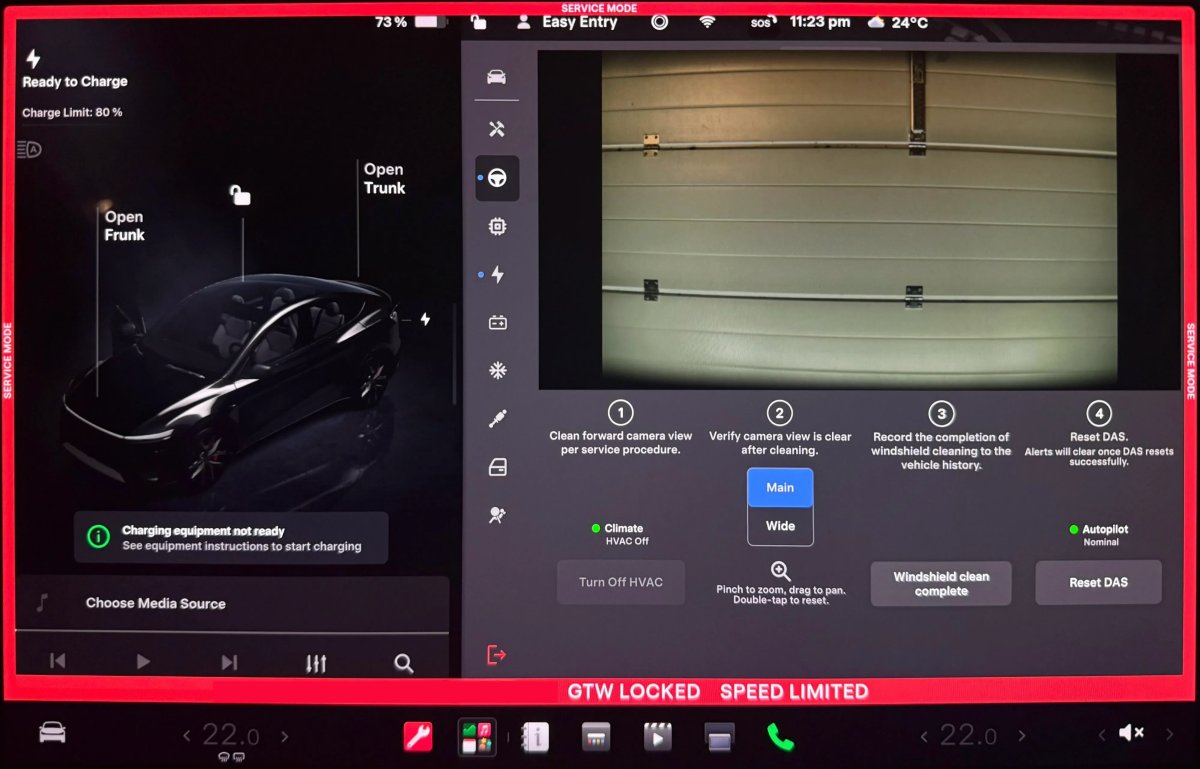
Forward Camera View Cleaning Panel
A new Forward Camera View Cleaning panel is available under Driver Assist to support cleaning the surface of the windshield in front of the cameras. The panel displays a live camera stream with the ability to zoom into the camera stream.
Models: Model 3, Model Y, Model S (2021+), Model X (2021+) with DAS AI4 and Cybertruck
Drive Unit Panel Update - Signal Chart Popups (Service Mode Plus)
The Drive Unit panel now supports interactive signal chart popups. Signals with a chart icon can be tapped to open a draggable, resizable popup window for real-time signal monitoring.
Models: Model 3, Model Y, Model S (2021+), Model X (2021+), Cybertruck

